HeavyLog is a personal reference tool only. It is not approved, endorsed or recognised by the National Heavy Vehicle Regulator (NHVR), the Australian Government, any State or Territory transport authority, or any other government agency.
HeavyLog does not replace your legal obligation to maintain a compliant work diary or logbook as required under the Heavy Vehicle National Law (HVNL) and NHVR regulations.
1. Introduction
HeavyLog is a personal fatigue management reference tool designed for Australian heavy vehicle drivers. It helps you informally track your work and rest activities against NHVR fatigue guidelines across three schemes: Standard Hours, Basic Fatigue Management (BFM) and ACA-F (Alternative Compliance Accreditation – Fatigue, Table 1).
The app records exact timestamps for all activities, calculates your remaining work and rest obligations in real time, and provides clear visual alerts when you are approaching or exceeding fatigue limits.
Key Features
- Real-time fatigue dashboard with colour-coded compliance bars
- Support for Standard Hours, BFM and ACA-F fatigue schemes
- Exact timestamp recording for all work and rest activities
- Automatic calculation of remaining work time across all concurrent fatigue windows
- Night Rest Calendar tracking your 14-day night rest requirement
- Compliance audit that re-scans your recent history for missed breaches
- Break and rest countdowns with configurable advance warnings and notifications
- Guided work-scheme changes with HVNL s263 reset tracking
- Optional GPS location capture for log entries (tap to use)
- CSV export/import, plus full JSON backup and restore
- All logbook data stored locally on your device
2. Getting Started
2.1 Installing HeavyLog
Android (free)
- Open the Google Play Store on your Android device.
- Search for HeavyLog.
- Tap Install and wait for the download to complete.
- Open the app. No account or registration is needed.
iPhone / iPad (subscription)
- Open the App Store on your iPhone or iPad.
- Search for HeavyLog and tap Get.
- On first launch the subscription screen appears. Start the free trial or choose a plan.
- Billing is handled by your existing Apple ID — HeavyLog never creates a separate account, username or password.
2.2 Subscription (iPhone / iPad only)
HeavyLog is free on Android. On iOS it is a subscription: A$1.99 per month or A$14.99 per year, billed through your Apple ID. New subscribers get a free trial (approximately one month).
The price and trial length shown inside the app are always the authoritative ones, as Apple sets them per region. Trial eligibility is tied to your Apple ID, so deleting and reinstalling the app does not grant a new trial. Manage or cancel your subscription any time in Settings → [your name] → Subscriptions.
2.3 Getting Started Walkthrough
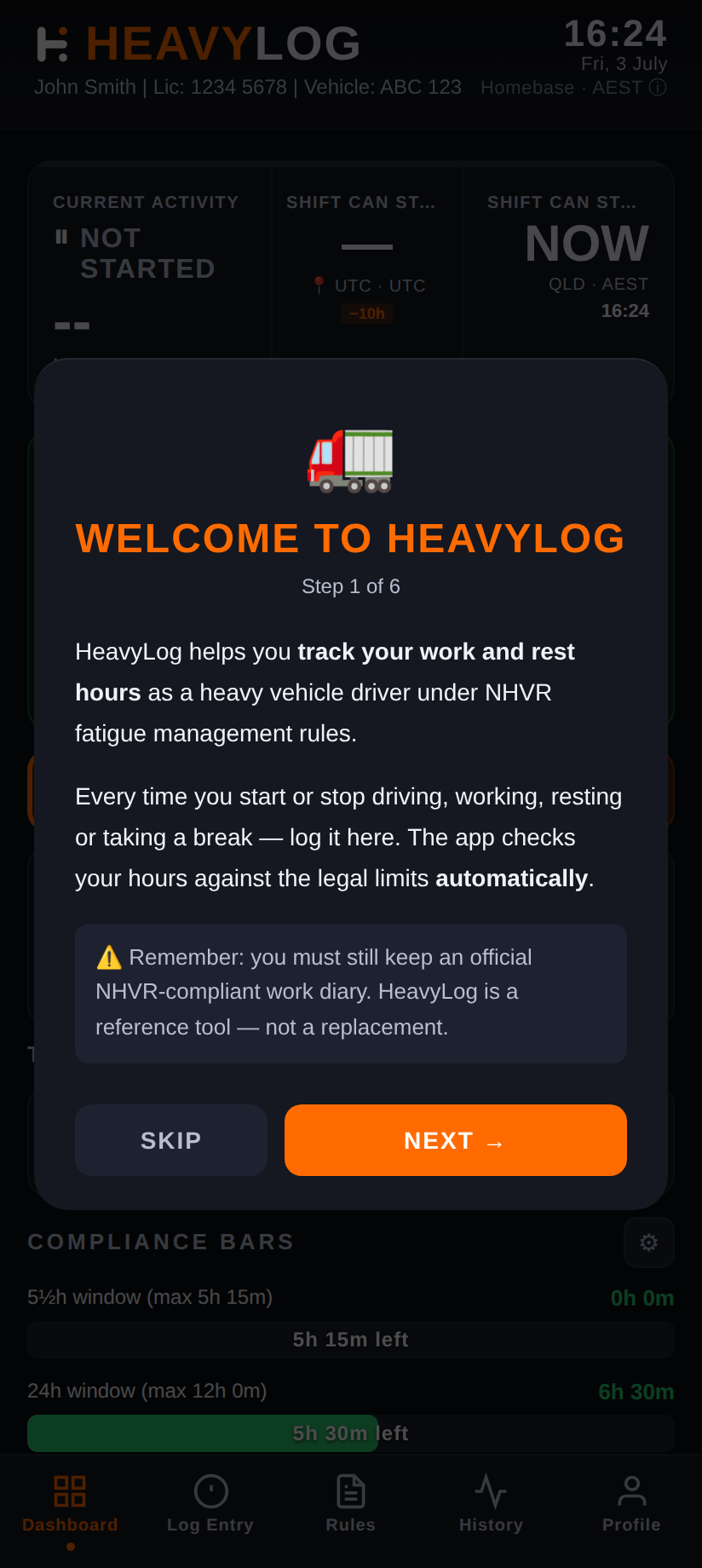
When you first open HeavyLog, a 6-step walkthrough introduces the key concepts: welcome, the compliance bars, your key rules, the first thing to log, the homebase clock, and a final summary. You can skip it at any point.
2.4 Setting Up Your Profile
Before you start logging activities, set up your driver profile in the Profile tab:
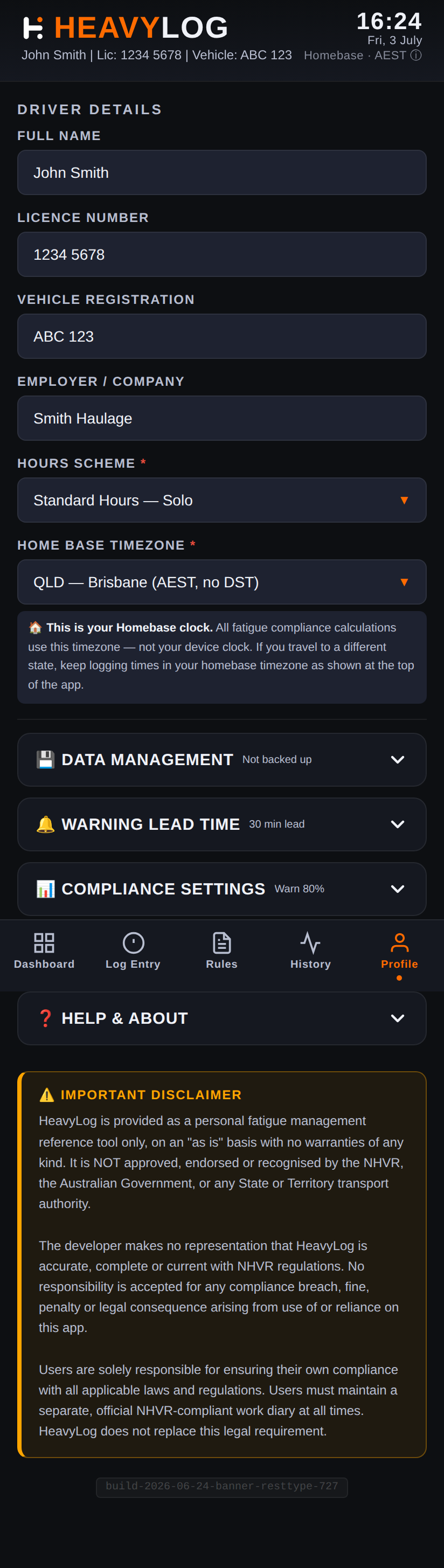
| Field | Description |
|---|---|
| Full Name | Your full name as it appears on your licence |
| Licence Number | Your heavy vehicle licence number |
| Vehicle Registration | Registration number of your primary vehicle |
| Employer / Company | The company you drive for (or your business name) |
| Hours Scheme | Required. Standard Hours — Solo, Basic Fatigue Management (BFM) — Solo, or Alternative Compliance Accreditation – Fatigue (ACA-F Table 1) — Solo. No scheme is preselected; you must choose one. Changing it later starts a guided swap — see section 8. |
| Home Base Timezone | Your home base timezone. All fatigue calculations — work, rest, night windows — use this zone, never the truck’s local time. |
| Warning Threshold | Percentage of a limit at which amber warnings appear (default 80%) |
| Warning Lead Time | How far ahead of a break or limit you are warned: Off, 5, 15, 30 (default), 45 or 60 minutes. Breach alerts always fire and cannot be turned off. |
3. The Dashboard
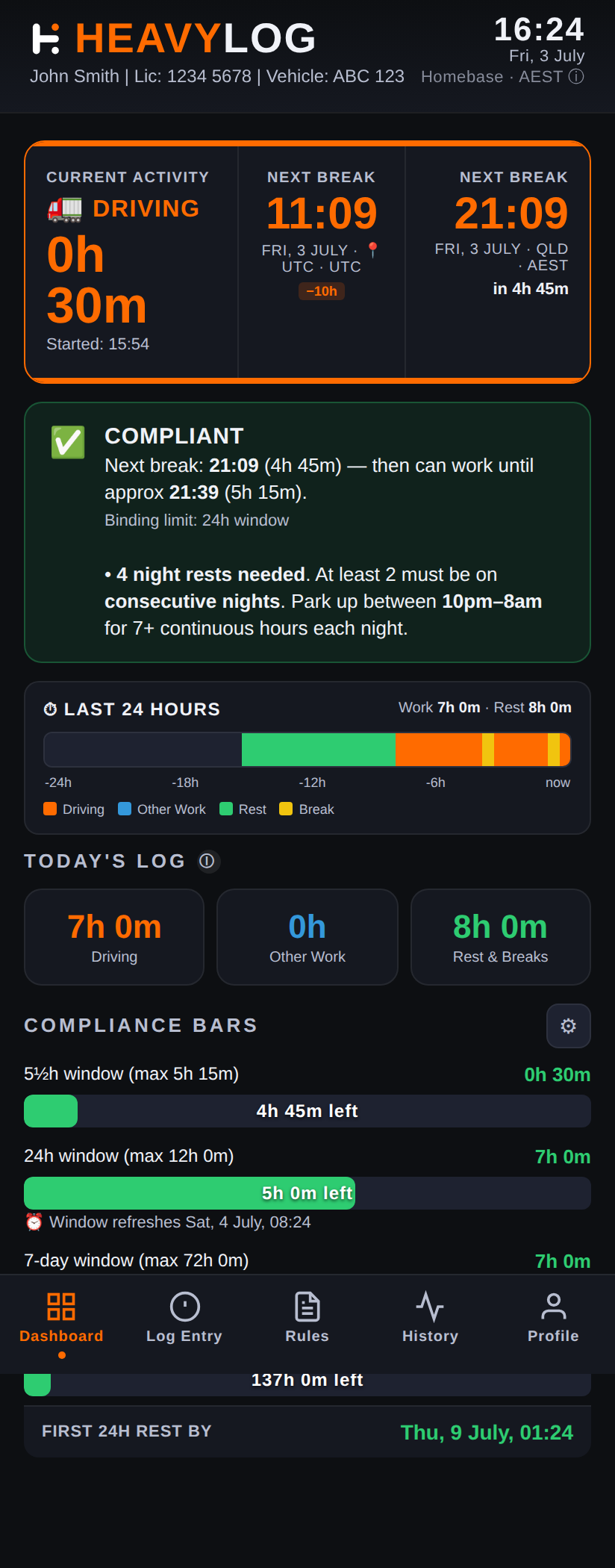
The Dashboard is your main screen. It shows your current fatigue status at a glance and updates in real time.
3.1 Status Card & Homebase Clock
The top of the Dashboard shows your current activity (Driving, Other Work, Break or Rest), how long you have been on it, and when it started. Alongside it a homebase clock counts down to your next required break.
If you are working away from your home base timezone, a second clock shows your local time as well — but remember that every compliance calculation still uses your homebase zone.
3.2 Alert Banner
The alert banner changes with your situation:
- COMPLIANT (green) — you are clear of all limits
- APPROACHING LIMITS (amber) — you are nearing a cap; plan your rest now
- FATIGUE BREACH / BREAK REQUIRED NOW / SHIFT LIMIT REACHED / WORK LIMIT REACHED (red) — act immediately
While you are resting, the banner instead shows your rest progress and when you may resume work.
3.3 Today’s Log
Three cards show your Driving, Other Work and Rest & Breaks totals for the current day. Tap the ⓘ beside the heading to see how HeavyLog defines “today” (your homebase timezone day).
3.4 Compliance Bars
Horizontal bars show how much of each fatigue window you have used, turning amber then red as you approach a limit. Tap any bar for a detailed breakdown; tap the ⚙ to change which bars are shown.
The short shift window differs by scheme:
- Standard Hours — 5½h window (max 5h 15m work, then a 15-minute break)
- BFM and ACA-F — 6¼h window (max 6h work, then a 15-minute break)
3.5 Long/Night Work Bar (BFM & ACA-F only)
A dedicated 🌙 bar tracks your long/night work against the 36-hour limit in any 7 days. See section 7.5 for what counts.
3.6 Reading the Planner
HeavyLog projects two forward-looking times. They are the most useful numbers on the screen, and the most commonly misread:
| Term | What it means |
|---|---|
| Next break | When your next rest break falls due — driven by whichever short window (5½h / 6¼h, 8h/9h, 11h/12h) runs out first. |
| Can work until | The end of your legal shift — the point at which your 24-hour work cap (12h Standard, 14h BFM/ACA-F) is exhausted and you must take a major rest. |
| Must stop by | The earliest of all binding constraints. This is the time to plan around. |
Both are projections, calculated on the assumption that you keep working continuously from now. They move as you log activity — taking a break earlier than required pushes them out; working through a break pulls them in.
4. Logging Activities
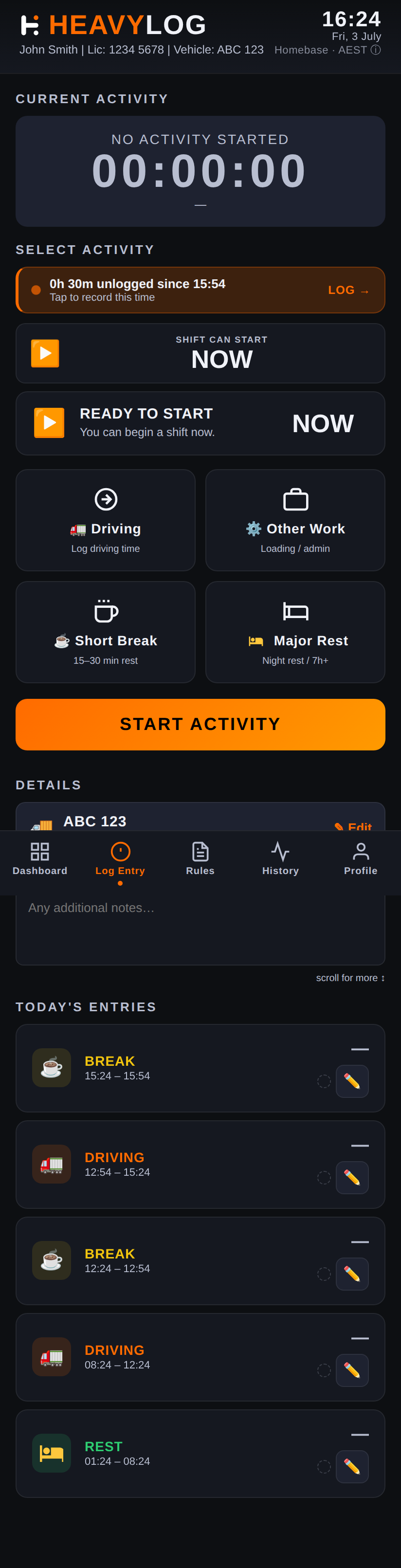
4.1 Activity Types
| Activity | Description | Counts As |
|---|---|---|
| Driving | Time spent driving the heavy vehicle | Work |
| Other Work | Non-driving tasks (loading, paperwork, checks) | Work |
| Short Break | A rest break taken during a shift | Rest |
| Major Rest | A long continuous rest, such as a night rest or a 24-hour reset | Rest |
Work time = driving plus all other vehicle-related work. Rest and breaks do not count as work.
4.2 Selecting and Starting an Activity
From the Log Entry tab, select the activity type you want to start, then tap the orange START ACTIVITY button.
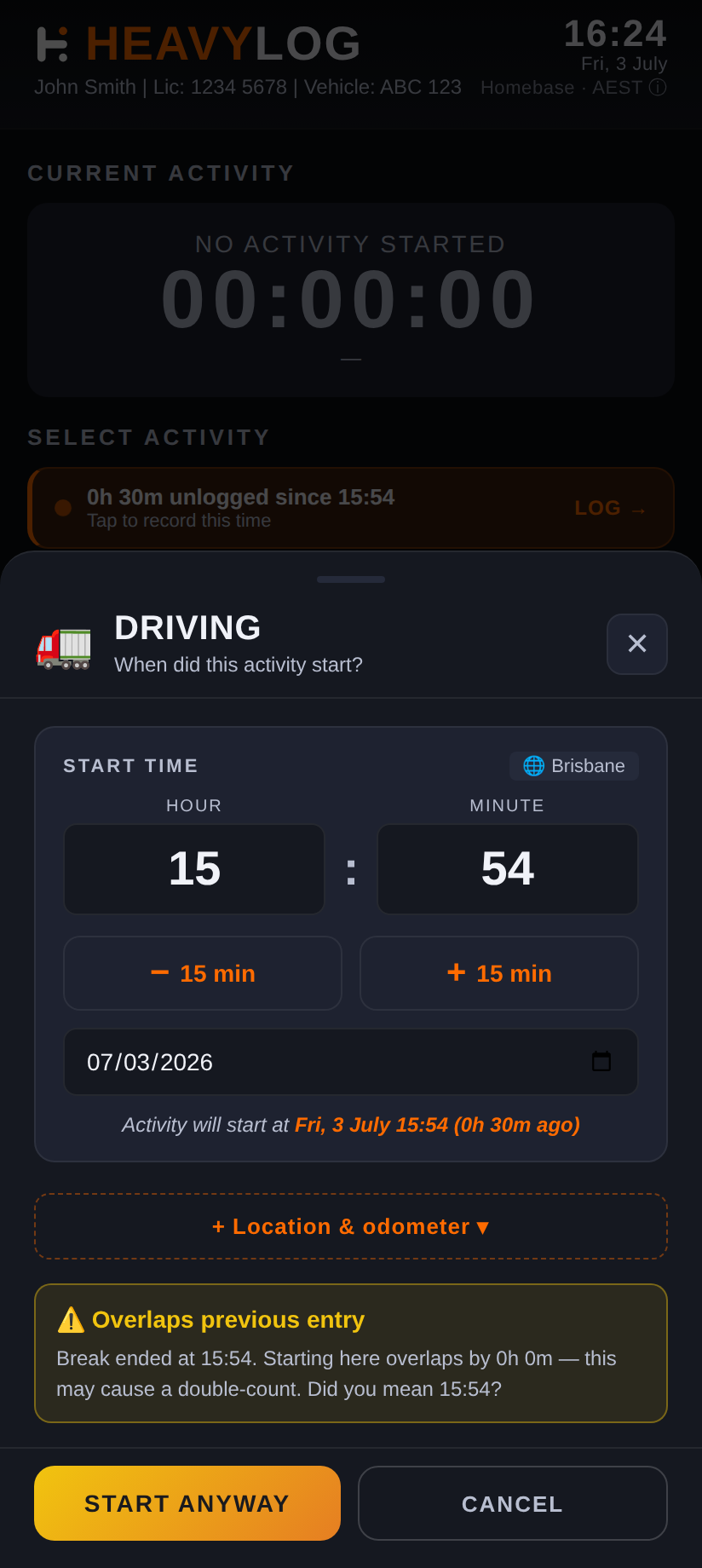
4.3 Setting the Start Time
After tapping START ACTIVITY, a modal appears where you can set the exact start time. The app defaults to the current time, but you can adjust the hour, minute and date to log a past activity.
The modal also shows any approaching fatigue limits so you can make an informed decision before starting work.
4.4 Stopping an Activity & Entering Details
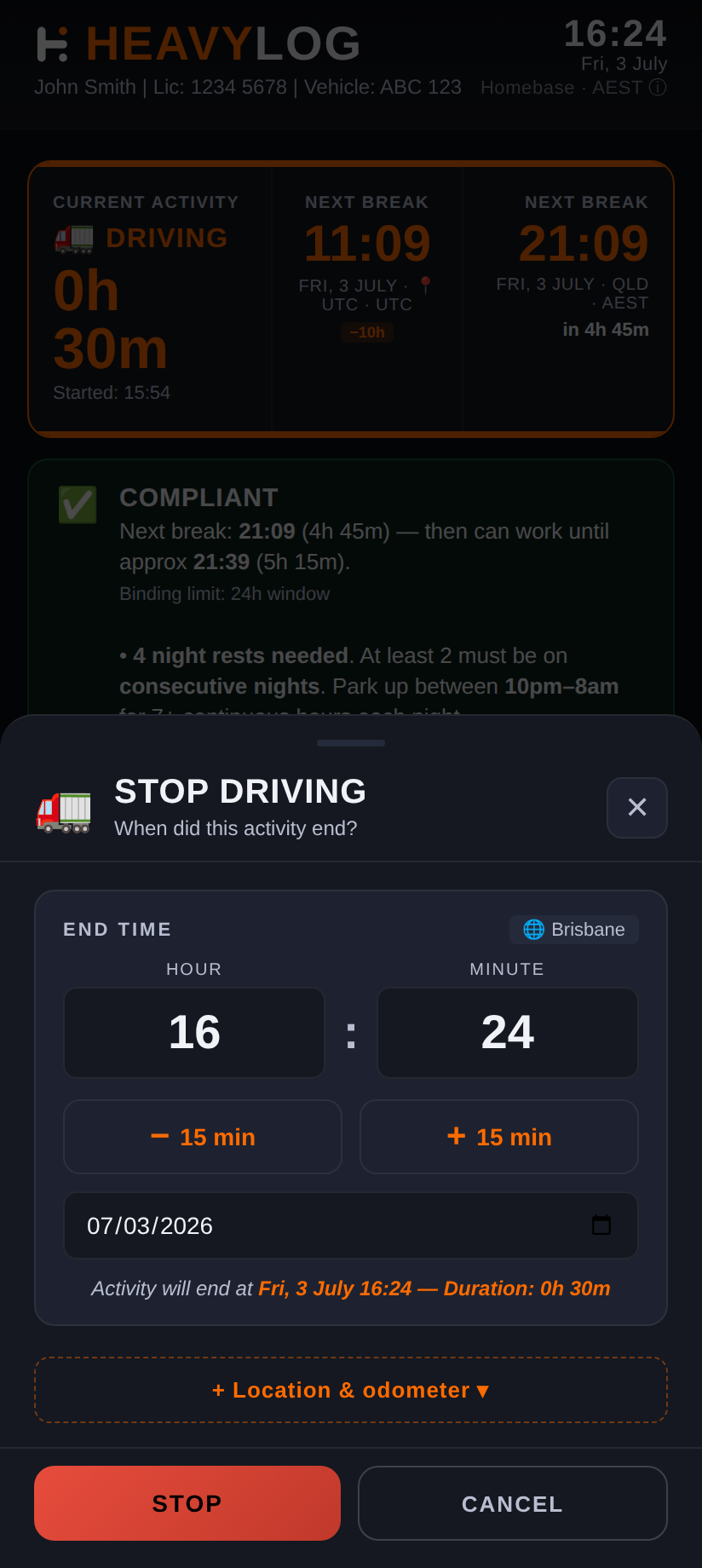
When you finish an activity, tap STOP. You will be prompted to enter:
- Location — Tap 📍 to look up your location, or type it manually
- Vehicle Rego / Fleet No. — Pre-filled from your profile
- Odometer (km) — Current reading
- Trailer No. — Pre-filled from your profile
- Note — Any additional notes
4.5 Location Lookup
When you tap the 📍 button, HeavyLog reads your device’s GPS and then looks up a readable street address:
- Your location is only accessed when you explicitly tap the button — never in the background
- The address lookup uses the internet. Your GPS coordinates are sent to the OpenStreetMap Nominatim service to convert them into a street name. No other data is sent, and the result is stored only in your log entry on your device
- If you prefer not to use this, simply type your location manually — the app never contacts the service unless you tap the button
- If you are out of mobile coverage the lookup will fail; you can still type the location by hand
5. A Typical Day, Start to Finish
This walkthrough shows the rhythm of using HeavyLog across one shift. The times are an example under Standard Hours — your own limits depend on your scheme.
- 05:55 — Before you roll Open the Log Entry tab, tap Driving, then START ACTIVITY. In the start-time modal set 06:00 and confirm. Check the warning box in the modal — if you are already close to a limit, it tells you before you commit.
- 06:00 — Driving The Dashboard now shows your status card, a homebase clock counting down to your next break, and the compliance bars slowly filling. You do not need to touch the app again until something changes.
- ~10:45 — Advance warning A notification arrives: “⏰ Break Required Soon — Take a 15-min break in 30 min.” Start looking for a safe place to stop. The Dashboard bar for the 5½h window has turned amber.
- 11:15 — Taking the break Pull up. Tap STOP, fill in location and odometer, and save. Then select Short Break and tap START ACTIVITY. The banner switches to rest mode and shows how much break time you still owe.
- 11:30 — Back to work Tap STOP to end the break, then select Driving and start again. Your short-window bar resets; the 24-hour and longer bars keep climbing — they are not reset by a short break.
- 14:00 — Loading at the depot Non-driving work still counts as work. Tap STOP, then log Other Work for the loading. Do not log it as a break — that would understate your work time and give you a false sense of headroom.
- 17:30 — Shift ending A notification warns that your shift limit is approaching. The planner’s can work until time tells you when your 24-hour work cap runs out.
- 18:00 — Major rest Tap STOP, enter your final location and odometer, then select Major Rest and start it. Leave it running overnight — the app counts your continuous rest as it accrues.
- Before bed — Confirm the day Go to History. The day heading shows a pending badge — tap it and complete the End-of-Day confirmation to declare the day’s entries true and correct. Each entry then shows a ✓.
- Next morning — Check your night rest If your rest ran 7+ continuous hours inside 10pm–8am homebase time, it counts as a night rest break. Open the Night Rest Calendar in History to confirm it was credited and see how many you still need.
6. Notifications & Warnings
HeavyLog can warn you before a limit arrives, so you are not relying on checking the screen.
6.1 What Fires
| Notification | When |
|---|---|
| ⏰ Break Required Soon | Your chosen lead time before a rest break falls due, naming the break length and the window forcing it |
| 🚨 Break Required Now | The moment the break is due |
| ⏰ Shift Ending Soon | Your lead time before your 24-hour work cap runs out and a major rest is required |
| 🚨 Fatigue Breach — Stop Now | A limit has been exceeded |
6.2 Controlling Them
- Set Warning Lead Time in the Profile tab: Off, 5, 15, 30 (default), 45 or 60 minutes.
- Setting it to Off disables the advance warnings only. Breach alerts always fire and cannot be turned off.
- The same setting also controls when the on-screen bars turn amber.
6.3 Things to Know
- Notifications only work in the installed phone app (Android or iOS), not in a web browser.
- They are only scheduled while a work activity is running — nothing fires while you are on a break or a major rest.
- They are recalculated every time you log something, so they always reflect your current position.
- Allow notification permission when prompted, or you will not receive them. On Android also check that battery optimisation is not restricting HeavyLog.
7. Fatigue Rules Reference
The Rules tab provides a built-in reference for NHVR fatigue rules. Switch between Standard Hours, BFM and ACA-F using the three tabs at the top.

7.1 How the Windows Are Counted
This is the most misunderstood part of the HVNL, and it is worth reading before the tables below.
- Every window is counted forward from the end of a relevant major rest break — never backwards from “now”.
- A later rest opens a new, additional window. It does not reset or zero a window that is already running.
- Because of this, several windows run at the same time, and you must satisfy all of them concurrently.
- A long rest — even 48 hours — does not wipe your 7-day or 14-day work totals. Hours worked before the rest keep counting.
7.2 Standard Hours — Solo
| In any period of | Max work | Min rest |
|---|---|---|
| 5½ hours | 5h 15m | 15 continuous minutes |
| 8 hours | 7h 30m | 30 min in blocks of at least 15 min |
| 11 hours | 10h | 60 min in blocks of at least 15 min |
| 24 hours | 12h | 7 continuous hours stationary rest |
| 7 days | 72h | 24 continuous hours stationary rest |
| 14 days | 144h | 4 night rest breaks total, of which 2 must fall on consecutive nights |
7.3 Basic Fatigue Management (BFM) — Solo
| In any period of | Max work | Min rest |
|---|---|---|
| 6¼ hours | 6h | 15 continuous minutes |
| 9 hours | 8h 30m | 30 min in blocks of at least 15 min |
| 12 hours | 11h | 60 min in blocks of at least 15 min |
| 24 hours | 14h | 7 continuous hours stationary rest |
| 7 days | 36h of long/night work (no cap on total work) | No rest entry required |
| 14 days | 144h | (a) 24 continuous hours stationary rest, taken before you accumulate 84h of work; and (b) a second, separate 24 continuous hours stationary rest; and (c) 4 night rest breaks total, of which 2 must fall on consecutive nights |
7.4 ACA-F (Table 1) — Solo
ACA-F requires ACA-F accreditation. Its daily limits are identical to BFM; the differences are all in the 14-day rest rules.
| In any period of | Max work | Min rest |
|---|---|---|
| 6¼ hours | 6h | 15 continuous minutes |
| 9 hours | 8h 30m | 30 min in blocks of at least 15 min |
| 12 hours | 11h | 60 min in blocks of at least 15 min |
| 24 hours | 14h | 7 continuous hours stationary rest |
| 7 days | 36h of long/night work (no cap on total work) | No rest entry required |
| 14 days | 144h | (a) Rest A — 24 continuous hours stationary rest, taken before you accumulate 84h of work; and (b) Rest B — a separate 30 continuous hours stationary rest that must cover midnight to 6am; and (c) 2 accredited night rest breaks |
Two ACA-F differences to watch: the second reset is 30 hours, not 24, and it must bracket midnight–6am. And unlike Standard/BFM, your 24-hour and 30-hour resets do not count towards the 2 required night rests — you need two separate overnight rests on top of them. ACA-F has no consecutive-nights requirement.
7.5 Key Definitions
- Night rest break — 7 continuous hours of stationary rest taken entirely between 10pm and 8am in your homebase timezone. Under Standard Hours and BFM a full 24-hour stationary rest also counts as one night rest break. Under ACA-F it does not — only the 7-hour overnight form counts.
- Stationary rest — rest taken out of the vehicle, or in an approved sleeper berth of a stationary vehicle. Rest in a moving vehicle does not count.
- Continuous — any work activity interrupts a rest and restarts the count.
- Long/night work (BFM & ACA-F) — any work between midnight and 6am homebase time, or any work hours beyond 12 hours in a 24-hour period. Where those overlap, the hours are counted once. The 36-hour limit is a rolling 7-day total and is not reset by taking a 24-hour rest.
7.6 How HeavyLog Calculates
HeavyLog uses exact timestamps for all calculations. A written work diary, by contrast, rounds each work block up to the next 15 minutes — so your paper figure will always be equal to or higher than HeavyLog’s. Where the app shows a paper-equivalent figure, use the higher number when comparing against your diary.
The app continuously evaluates every concurrent window to determine how much work and rest you have accumulated. When a window approaches its limit, the relevant bar changes colour and the alert banner updates.
↑ Back to top8. Changing Your Work Scheme
Under the HVNL you may only operate under one fatigue scheme at a time, and section 263 sets strict conditions on changing between them. HeavyLog guides you through this rather than simply switching the setting.
8.1 The Two Legal Paths
When you change your Hours Scheme in the Profile tab, a CHANGING WORK SCHEME confirmation appears showing the change (for example Standard Hours → BFM) and the two options the law allows:
- ✅ Be compliant with all work and rest requirements of the new scheme — the swap then takes effect immediately.
- ⌛ If you are not compliant, you must take 48 continuous hours of rest before operating under the new scheme.
Tap CONFIRM SWAP to proceed, or CANCEL to stay on your current scheme.
8.2 When a 48-Hour Reset Is Needed
If a reset is required, the swap becomes pending. A banner appears on the Dashboard with a progress bar tracking your 48 hours of continuous rest. When the rest completes, the new scheme takes effect.
8.3 Cancelling or Changing a Pending Swap
- To cancel, simply re-select your current scheme in the dropdown. HeavyLog confirms with “Scheme swap cancelled”.
- Only one swap can be pending at a time. Cancel the current one before starting another.
- Selecting the scheme you are already swapping to just reminds you the swap is in progress.
8.4 What a Reset Does Not Do
A 48-hour reset lets you begin operating under the new scheme — it does not erase your history. Windows longer than the reset itself keep running across the change, including the 144-hour 14-day work cap and your night rest pattern. Work done before the swap continues to count toward those.
9. History & Compliance Audit
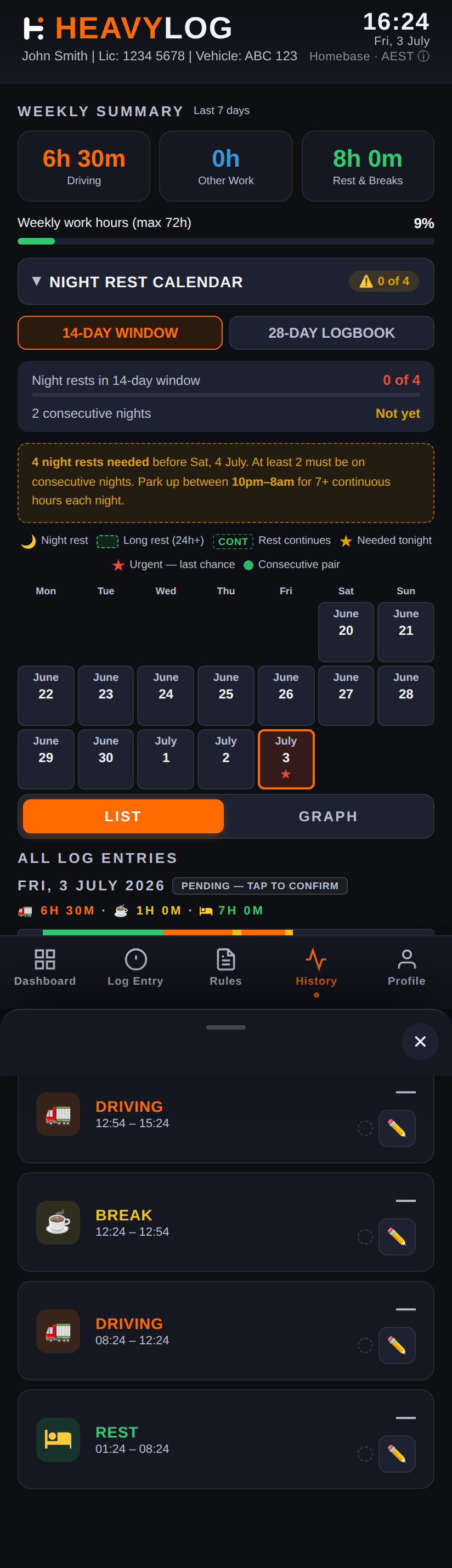
The History tab is your full compliance record: a weekly summary, a night rest calendar, list and graph views of your entries, and a compliance audit.
9.1 Weekly Summary
Three cards show your Driving, Other Work and Rest & Breaks totals. The period is shown beside the heading — “Last 7 days” for a rolling seven-day total, or “Since <date>” when a 7-day window is anchored to a major rest. It is not a Monday-to-Sunday week.
Below the cards a progress bar tracks your work against the weekly limit. Under Standard Hours this is the 72-hour cap. Under BFM and ACA-F there is no 7-day total-work limit — only the 36-hour long/night cap — so use the 🌙 Long/Night bar on the Dashboard as your real 7-day constraint.
9.2 Night Rest Calendar
A collapsible calendar showing which nights you took a qualifying night rest. The header badge shows your progress (for example “2 of 4”), and the panel tells you how many more are needed and by when. Nights that qualify are marked; upcoming nights you still need are highlighted.
9.3 List and Graph Views
Tap LIST or GRAPH to change how history is displayed; your choice is remembered.
- GRAPH shows a 28-day strip of status pills — green COMPLIANT, red BREACH, grey NO ENTRIES. Tap a day to see a 24-hour timeline of driving, other work, breaks and rest, with any breach marked on the work row.
- Tap any bar on the timeline to open a detail sheet with that activity’s start, end, duration and type.
- LIST shows your entries grouped by day, newest first, each with its activity icon, times, location, vehicle, trailer and duration. Tap the pencil icon to edit an entry.
History shows the most recent 28 days; tap Show next 28 days at the bottom to load older records.
9.4 Compliance Audit
HeavyLog re-scans your recent history for breaches you may have passed through. If it finds any, a red banner appears at the top of History and an All Entries / ⚠️ Audit toggle becomes available. The Audit view lists each breach with the window that was exceeded, the exact time, and by how much.
9.5 Confirming Your Entries
Each day heading shows a confirmation status — pending, ⚠ partial, or ✓ confirmed. Tap a pending badge to open the End-of-Day confirmation and declare that day’s entries true and correct. Confirmed entries are marked with a ✓.
↑ Back to top10. Fixing Mistakes & Missing Entries
Forgetting to log something is the most common real-world problem. Everything in HeavyLog can be corrected, and your fatigue status recalculates automatically afterwards.
10.1 You Forgot to Start an Activity
Start it as normal, but in the start-time modal set the correct past time — adjust the hour, minute and date. Do not just start it “now”, as that understates your work time and can hide a real breach.
10.2 You Forgot to Stop an Activity
Stop it, then go to History, tap the pencil icon on that entry and correct the end time. The entry’s duration and every affected window will recalculate.
10.3 Gaps and Overlaps
HeavyLog checks your recent history for unrecorded time between entries and for entries that overlap each other. If it finds any, an amber HISTORY ISSUES banner appears at the top of History — tap it to jump to the first issue.
- Gaps appear inline between entries. Add the missing activity to fill the gap, or extend an adjacent entry if that is what actually happened.
- Overlaps mean two entries claim the same minutes. Edit one of them so the times line up.
Unrecorded time is not automatically treated as rest, so leaving gaps can make your rest look shorter than it was — or hide work you actually did.
10.4 Editing a Confirmed Entry
If you edit an entry you have already confirmed, HeavyLog shows an “Edit confirmed entry?” warning, reminding you that you declared it true and correct. Choose Cancel to leave it alone, or Edit anyway to proceed.
10.5 Rebuilding a Whole Missing Day
Add the entries oldest-first so each one follows on from the last, using the start-time modal to set the correct times. Work from your written diary, delivery dockets or fuel receipts rather than memory, and confirm the day once it is complete.
↑ Back to top11. Backup, Export & Import
11.1 Full Backup and Restore (JSON)
- Go to the Profile tab.
- Tap ☁️ BACK UP TO CLOUD. HeavyLog writes a complete snapshot of your logbook and settings to your device’s Documents folder and opens a share menu (Drive, Dropbox, email, and so on).
- To restore, tap 📥 RESTORE FROM CLOUD and choose the backup file.
This is the most complete backup, because it preserves your profile and settings as well as your entries.
11.2 Exporting Your Log (CSV)
- Go to the Profile tab.
- Tap 📤 EXPORT LOGBOOK.
- The CSV is saved to your device and can be shared by email, cloud storage or any other method.
The exported CSV includes activity type, start/end times, duration, location, odometer, vehicle rego, fleet number, trailer number, notes and driver details. On iPhone/iPad, exported files are also browsable in the Files app under On My iPhone → HeavyLog.
11.3 Importing a Log (CSV)
- Go to the Profile tab.
- Tap 📥 IMPORT LOGBOOK (CSV).
- Select the CSV file and HeavyLog will map the columns and import the entries.
11.4 Destructive Actions
Under ⚠ Destructive Actions in the Profile tab:
- 🗑️ CLEAR LOG ENTRIES — deletes all entries; your profile settings are kept.
- Delete entries before a date — pick a date and permanently remove everything before it.
12. Tips & Best Practices
12.1 Keep Your Log Accurate
Log every activity as it happens. Starting and stopping promptly keeps your fatigue calculations accurate, and avoids gaps you have to reconstruct later.
12.2 Back Up Regularly
Make a habit of backing up at least weekly. Your backup is also useful for cross-referencing against your official work diary.
12.3 Watch the Amber Warnings
Amber warnings give you advance notice so you can plan your next rest before hitting a red limit. Tune how early they appear with the Warning Lead Time setting.
12.4 Plan Your Night Rests
Night rests are the requirement drivers most often miss, because they must fall in a specific window (10pm–8am) rather than simply being long enough. Check the Night Rest Calendar weekly, not on the last day.
12.5 Remember Everything Uses Homebase Time
If you drive across state lines, your night rest and long/night work windows are still measured in your homebase timezone — not the local time where you are parked.
12.6 Keep Your Device Secure
All data is stored on your device, so security depends on your device. Use a screen lock, keep your OS updated, and don’t share your device with untrusted persons.
12.7 Remember Your Legal Obligations
HeavyLog is a personal reference tool. It does not replace your legal obligation to maintain an official NHVR-compliant work diary.
↑ Back to top13. Troubleshooting
13.1 Dashboard Shows Unexpected Alerts
Check your recent entries in History. A missed stop, an overlapping entry or an incorrect time will affect calculations. Look for the amber HISTORY ISSUES banner and see section 10 for how to correct entries.
13.2 Location Not Working
Android: Settings → Apps → HeavyLog → Permissions → Location → allow.
iPhone/iPad: Settings → HeavyLog → Location → set to “While Using the App”.
Also check your device’s location services are on. If the coordinates are found but no address appears, the address lookup needs an internet connection — type the location manually when out of coverage.
13.3 Notifications Not Arriving
Check that notification permission is granted, that Warning Lead Time is not set to Off, and that a work activity is actually running — nothing is scheduled during a break or rest. On Android, also check battery optimisation is not restricting HeavyLog.
13.4 Data Lost After Reinstall
Uninstalling removes all locally stored data. This is why regular backups matter. Use RESTORE FROM CLOUD or CSV Import to bring your records back.
13.5 CSV Import Errors
Ensure the file matches HeavyLog’s export format. Common causes: modified headers, changed date formats, or extra columns added by spreadsheet software.
13.6 Reporting a Problem
Open Profile → ❓ Help & About → Build and quote the build string (for example build-2026-07-15-…-758) when contacting support. It tells us exactly which version you are running.
↑ Back to top14. Data & Privacy
- All logbook data — your entries, profile and settings — is stored locally on your device and is never uploaded, unless you export or back it up yourself
- No HeavyLog account, login or registration is created on any platform
- No analytics, crash reports or advertising identifiers are collected
- Your location is only accessed when you tap the 📍 button — never in the background
- HeavyLog works offline for all logging and fatigue tracking. Two features use the internet: the optional location lookup (your coordinates are sent to the OpenStreetMap Nominatim service to obtain a street name), and, on iOS only, subscription verification with Apple
For full details, see the HeavyLog Privacy Policy.
↑ Back to top15. Legal Notices
Disclaimer: HeavyLog is provided as a personal reference tool only, on an “as is” basis with no warranties of any kind. It is not approved, endorsed or recognised by the NHVR, the Australian Government, or any State or Territory transport authority.
We make no representation that HeavyLog is accurate, complete or current with NHVR regulations. We accept no responsibility for any compliance breach, fine, penalty or legal consequence arising from use of or reliance on this app.
Users are solely responsible for ensuring their own compliance with all applicable laws and regulations, including maintaining an official NHVR-compliant work diary.
↑ Back to top16. Support & Contact
If you have any questions, found a bug, or want to suggest a feature, you can reach us at:
You can also tap Profile → 📧 Contact support in the app, which opens a pre-addressed email.
To leave a public review: Android users, use the HeavyLog listing on Google Play; iPhone/iPad users, use the App Store listing.
↑ Back to top